

Github Copilot in Xcode
Hey there, iOS developers! 👋 If you've been curious about bringing AI-powered code suggestions into your Xcode workflow, you're in the right place. Today, I'll walk you through setting up GitHub Copilot in Xcode - it's easier than you might think!
What is GitHub Copilot?
Before we dive in, let's quickly cover what Copilot brings to the table. Think of it as your AI pair programmer that:
Suggests whole lines or blocks of code as you type
Understands your coding context and project structure
Works with Swift, Objective-C, and other languages supported in Xcode
Prerequisites
Before we start, make sure you have:
Xcode 8+ or later installed.
A GitHub account and an active GitHub Copilot subscription.
macOS 12.0 (Monterey) or later.
Installation Steps
1. Download the Extension
First, grab the GitHub Copilot extension from GitHub's official repository:
Download the
dmgfrom the latest release.Extract the downloaded file
2. Install the Extension
Now let's get that extension into Xcode:
Open the extracted folder
Double-click on
CopilotForXcode.appClick "Open" if you see a security warning
Follow the installation prompts
The app will appear in your menu bar with the GitHub Copilot icon
3. Grant Required Permissions
The extension requires two specific permissions to function properly:
Accessibility Permission
You'll be automatically prompted to enable this when you first start the extension
Follow the system prompts to grant access

Xcode Source Editor Permission
Open the GitHub Copilot extension application
Click Extension Permission and click Xcode Source Editor
Enable GitHub Copilot and click Done
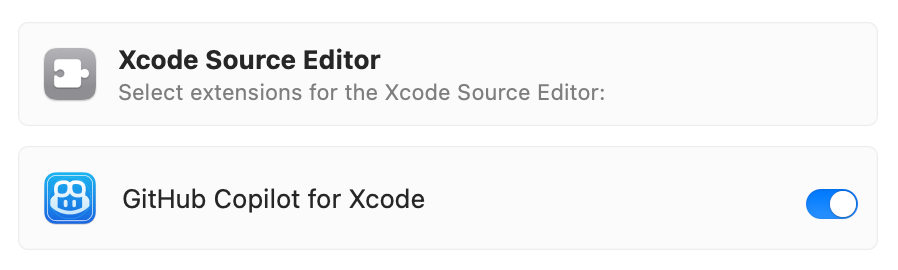
Important: After granting these permissions, restart Xcode. You'll see a new "GitHub Copilot" item in the "Editor" menu.

4. Sign in to GitHub
Time to authenticate your GitHub account:
Open the GitHub Copilot extension application
Click Login to GitHub
Follow the prompts to authorize the extension
Once authenticated, you'll see a confirmation message

5. Try Your First Copilot Suggestion
Let's make sure everything is working:
Open Xcode and create a new Swift file
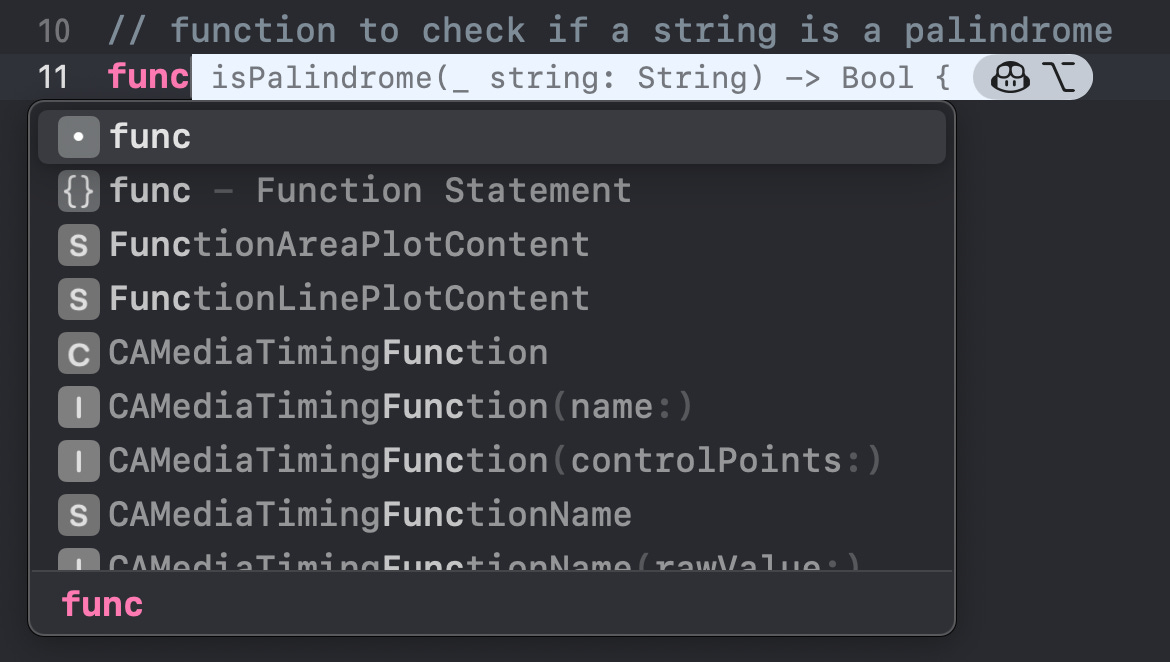
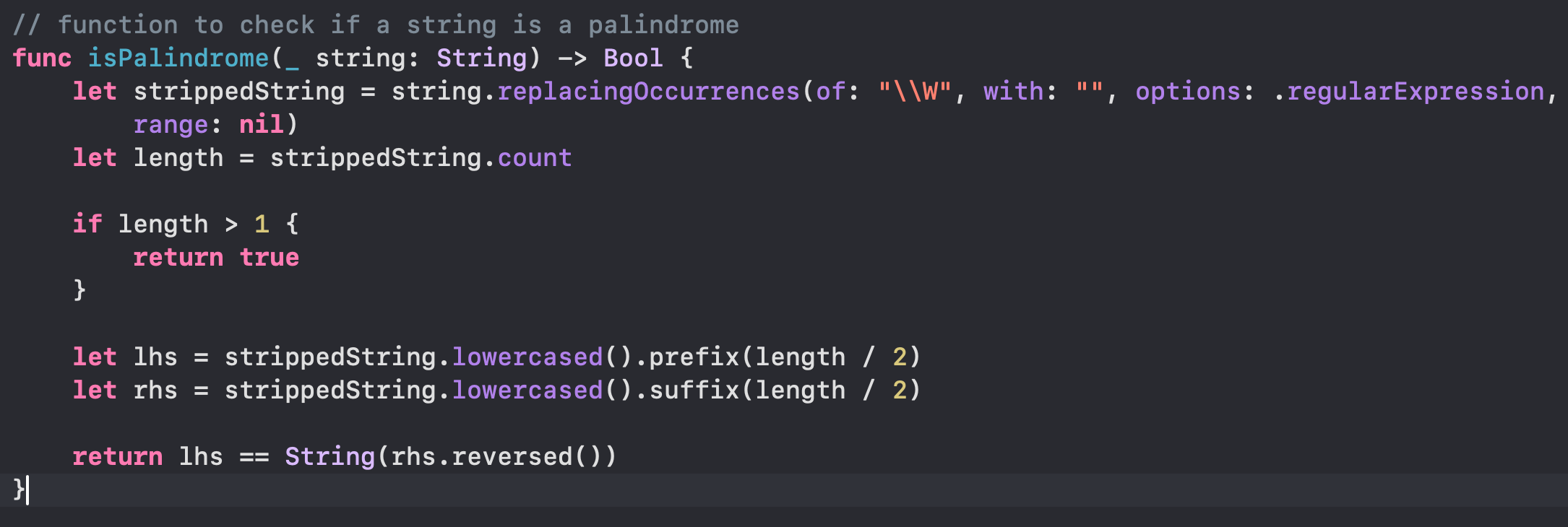
Add this comment and type the function:
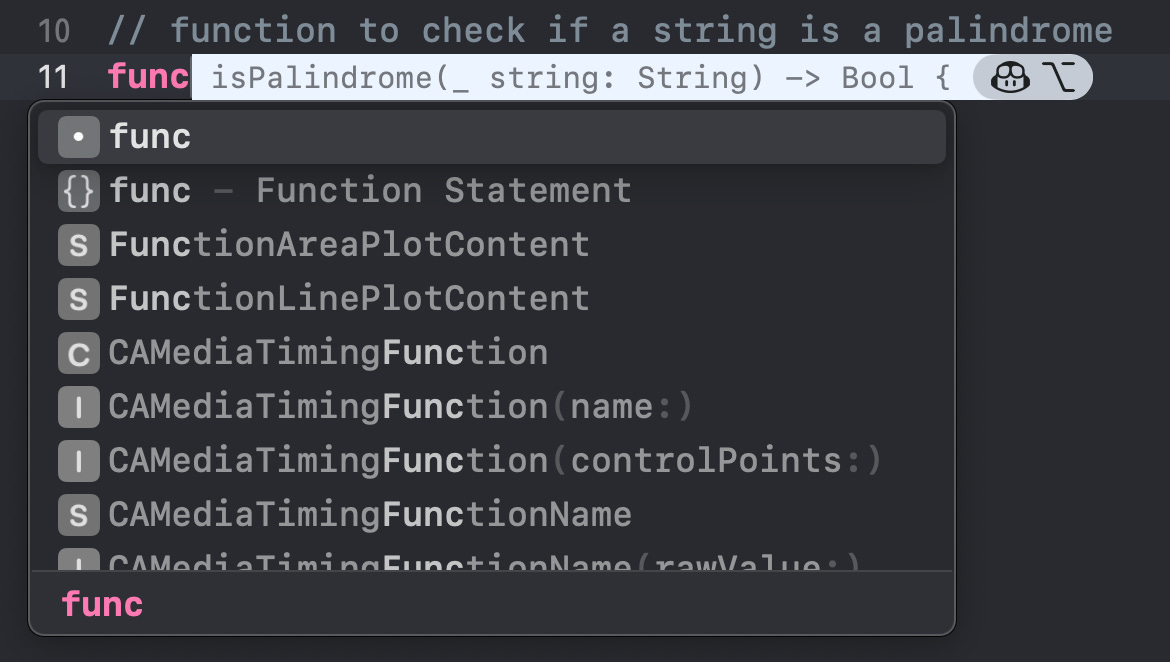
Copilot should suggest a complete function implementation.
Press
⌥ + Tabto accept full suggestion.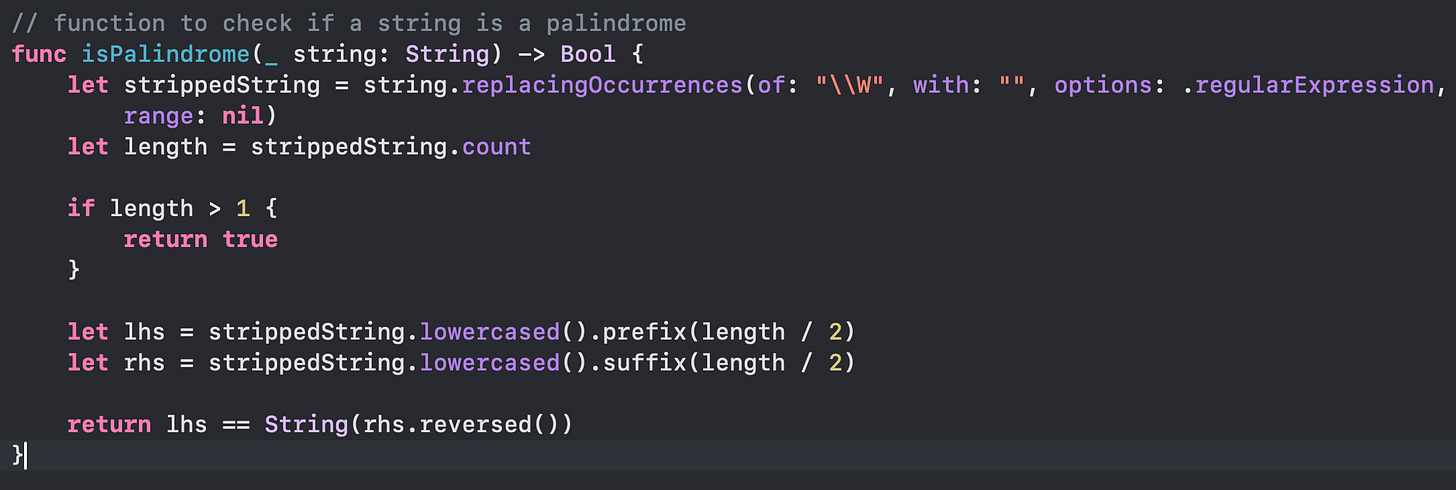
If you see suggestions appearing, congratulations! Copilot is working correctly.
Pro Tips
Here are some tips to get the most out of Copilot:
1. Managing Updates
Click
Check for Updatesfrom the menu item or in the settings applicationRestart Xcode after installing updates for them to take effect
2. Optimize Xcode Settings
Disable
Predictive code completionto avoid conflictsGo to
Xcode>PreferencesNavigate to
Text Editing>EditingUncheck
Predictive code completion
3. Keyboard Shortcuts
Press
Tabto accept the first line of a suggestionHold
Optionto view the full suggestionPress
Option+Tabto accept the full suggestion
4. Writing Effective Comments
Be descriptive in your comments for better suggestions
Include expected input/output in your comments
Use natural language as if explaining to another developer
5. Contextual Awareness
Keep related code visible in the editor
Include relevant import statements
Structure your code logically for better suggestions
Pricing and Subscription
Remember that GitHub Copilot is a paid service:
Free for verified students and teachers
Free for popular open source project maintainers
$10/month or $100/year for individual developers
Enterprise pricing available for teams
Additional Resources
Need more help? Check out these official resources:
Official extension repository and latest releases - GitHub Copilot for Xcode Repository
Having issues? Visit the Copilot for Xcode Issues page
Want to learn more about Copilot? See the GitHub Copilot Overview
Need subscription help? Visit Copilot Billing
Conclusion
GitHub Copilot for Xcode is a powerful tool that can significantly speed up your iOS development workflow. While it's not meant to replace human developers, it's an excellent assistant for handling boilerplate code, suggesting implementations, and learning new patterns.
Give it a try, and you might be surprised at how it enhances your coding experience. Happy coding! 🚀