

SwiftUI: Using Zoom Navigation Transition

Hey there, fellow iOS developers! Today I want to share something cool I've been working on - implementing that smooth, satisfying zoom transition you see in apps like Instagram when tapping on an image. You know the one - where the thumbnail elegantly expands into a full-screen view? Let's break down how to create this effect in SwiftUI using new approach.
Understanding Navigation Transitions
SwiftUI's navigation transitions recently got a significant update, making fluid animations much more accessible. By combining NavigationStack with matched geometry effects, we can create seamless transitions that give your app that premium feel.
System Requirements
Before we dive in, let's cover the requirements to implement this feature:
Xcode 16.0 or later
Minimum OS Versions:
iOS 18.0+
iPadOS 18.0+
macOS 15.0+
tvOS 18.0+
watchOS 11.0+
visionOS 2.0+
Step-by-Step Implementation
Let's break down the implementation into manageable steps. We'll create a grid view of images that zoom smoothly into a detail view when tapped.
1. Gallery View (ContentView)
import SwiftUI

struct ContentView: View {

    @Namespace private var namespace

    let imageUrls = [
        "https://picsum.photos/id/10/300/300",
        "https://picsum.photos/id/11/300/300",
        "https://picsum.photos/id/12/300/300",
        "https://picsum.photos/id/13/300/300",
        "https://picsum.photos/id/14/300/300",
        "https://picsum.photos/id/15/300/300",
        "https://picsum.photos/id/16/300/300",
        "https://picsum.photos/id/17/300/300",
        "https://picsum.photos/id/18/300/300",
        "https://picsum.photos/id/19/300/300",
        "https://picsum.photos/id/20/300/300",
        "https://picsum.photos/id/21/300/300"
    ]

    let columns = [
        GridItem(.flexible(), spacing: 12),
        GridItem(.flexible(), spacing: 12)
    ]

    var body: some View {
        NavigationStack {
            ScrollView {
                LazyVGrid(columns: columns, spacing: 12) {
                    ForEach(imageUrls.indices, id: \.self) { index in
                        NavigationLink {
                            DetailView(imageUrl: imageUrls[index])
                                .navigationTransition(
                                    .zoom(sourceID: "image-\(index)", in: namespace)
                                )
                        } label: {
                            AsyncImage(url: URL(string: imageUrls[index])) { image in
                                image
                                    .resizable()
                                    .aspectRatio(contentMode: .fill)
                            } placeholder: {
                                Rectangle()
                                    .fill(.gray.opacity(0.2))
                                    .overlay {
                                        ProgressView()
                                    }
                            }
                            .frame(height: 120)
                            .clipShape(RoundedRectangle(cornerRadius: 12))
                            .matchedTransitionSource(id: "image-\(index)", in: namespace)
                        }
                    }
                }
                .padding()
            }
            .navigationTitle("Gallery")
        }
    }
}

#Preview {
    ContentView()
}
2. DetailView
import SwiftUI

struct DetailView: View {
   let imageUrl: String

   var body: some View {
       ScrollView {
           VStack(spacing: 0) {
               AsyncImage(url: URL(string: imageUrl)) { image in
                   image
                       .resizable()
                       .aspectRatio(contentMode: .fill)
               } placeholder: {
                   Rectangle()
                       .fill(.gray.opacity(0.2))
               }
               .frame(height: 400)

               VStack(alignment: .leading, spacing: 16) {
                   Text("Lorem ipsum dolor sit amet")
                       .font(.title)
                       .fontWeight(.bold)

                   Text("Lorem ipsum dolor sit amet, consectetur adipiscing elit. Sed do eiusmod tempor incididunt ut labore et dolore magna aliqua. Ut enim ad minim veniam, quis nostrud exercitation ullamco laboris nisi ut aliquip ex ea commodo consequat. Duis aute irure dolor in reprehenderit in voluptate velit esse cillum dolore eu fugiat nulla pariatur. Excepteur sint occaecat cupidatat non proident, sunt in culpa qui officia deserunt mollit anim id est laborum.")
                       .font(.body)
                       .foregroundStyle(.secondary)
               }
               .padding()
           }
       }
   }
}

#Preview {
    DetailView()
}
Core Concepts Explained
1. Namespace
@Namespace private var namespaceThe namespace creates a shared context for the transition animation. It's like giving both views (gallery and detail) a common reference point so SwiftUI knows which views to animate between.
2. Transition Source and Destination
// In Gallery View
.matchedTransitionSource(id: "image-\(index)", in: namespace)

// In Navigation Link
.navigationTransition(.zoom(sourceID: "image-\(index)", in: namespace))
These two modifiers are the heart of the zoom transition:
matchedTransitionSourcemarks the starting point of the animationnavigationTransitiondefines how the view should animate when navigating
3. Navigation Stack
The NavigationStack wrapper enables the custom transition while maintaining standard navigation behavior. This means you get the zoom animation while keeping familiar navigation gestures and behaviors.
The Final Result
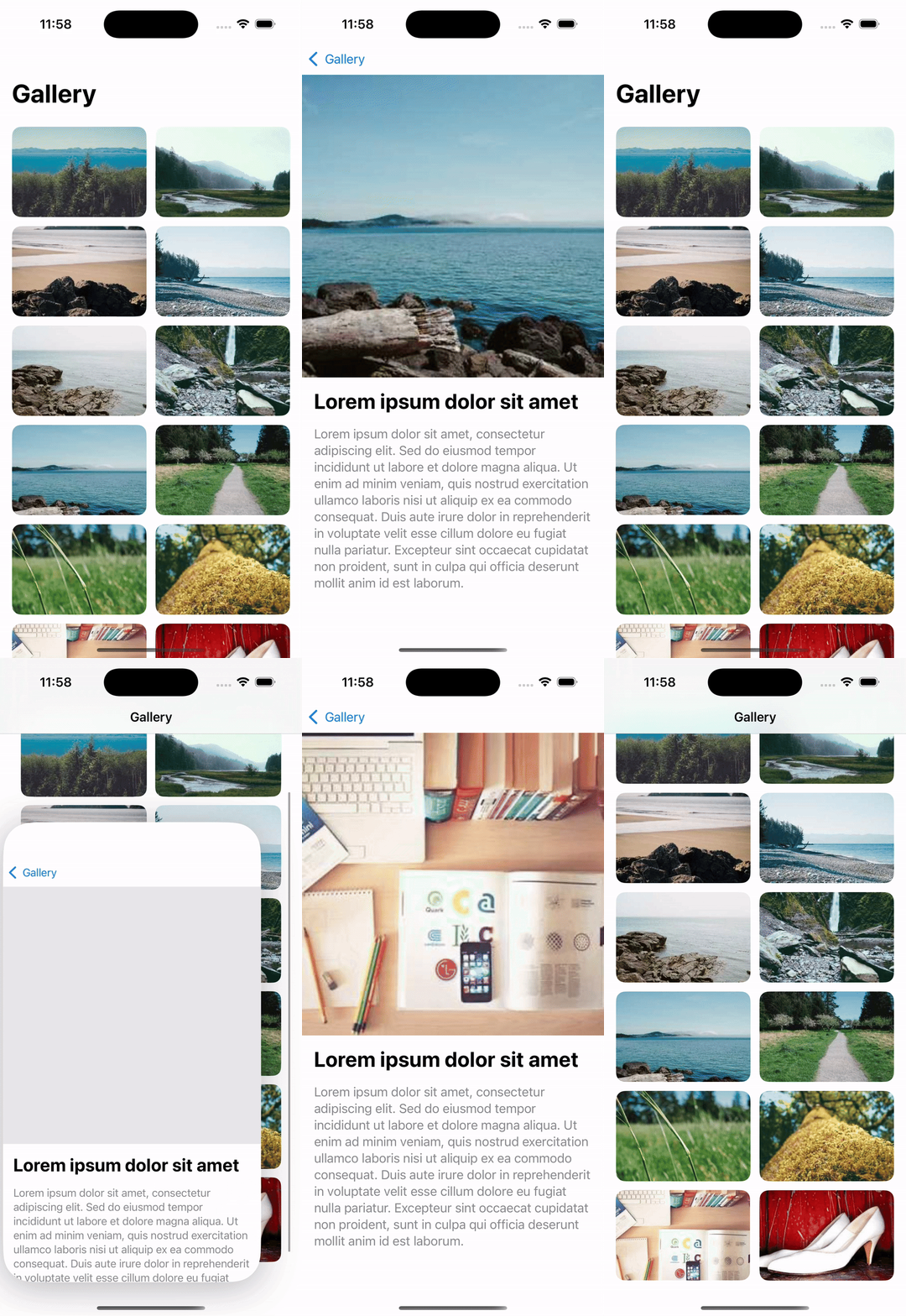
The end product is a polished gallery where tapping any image triggers a smooth zoom transition to its detail view. The thumbnail gracefully expands while the additional content slides in from below.
Key Takeaways
This zoom transition API demonstrates Apple's commitment to providing developers with powerful tools for creating engaging user experiences. The implementation is straightforward, yet the impact on user experience is significant.
Whether you're building a photo gallery, product catalog, or any app that transitions between grid and detail views, this transition adds that extra layer of polish users expect from modern apps.
Feel free to experiment with the animation parameters or adapt the layout to match your app's design. The possibilities are endless!
Let me know in the comments if you've found interesting ways to customize this transition or have ideas for improving it. Happy coding! 🚀
"Design is not just what it looks like and feels like. Design is how it works." — Steve Jobs